Complete a Task at a Chosen Date
You can now set the date and time a task was completed, instead of always using the moment you click the button.
This applies in three places:
- Completing a pending task.
- Logging a task you already finished.
- Changing the completion date of a task that is already complete.
Why This Exists
Until now, every completed task was stamped with the current time. If you finished something yesterday and recorded it today, WingTask recorded it as finished today.
A more accurate completion time gives you a more accurate record of what you did and when.
This also prepares WingTask for a calendar feature that has not been released yet. It will let you look back at what you completed in the past, so you can plan what to do now and in the future. That view is only as useful as the completion times behind it.
Complete a Pending Task on a Chosen Date
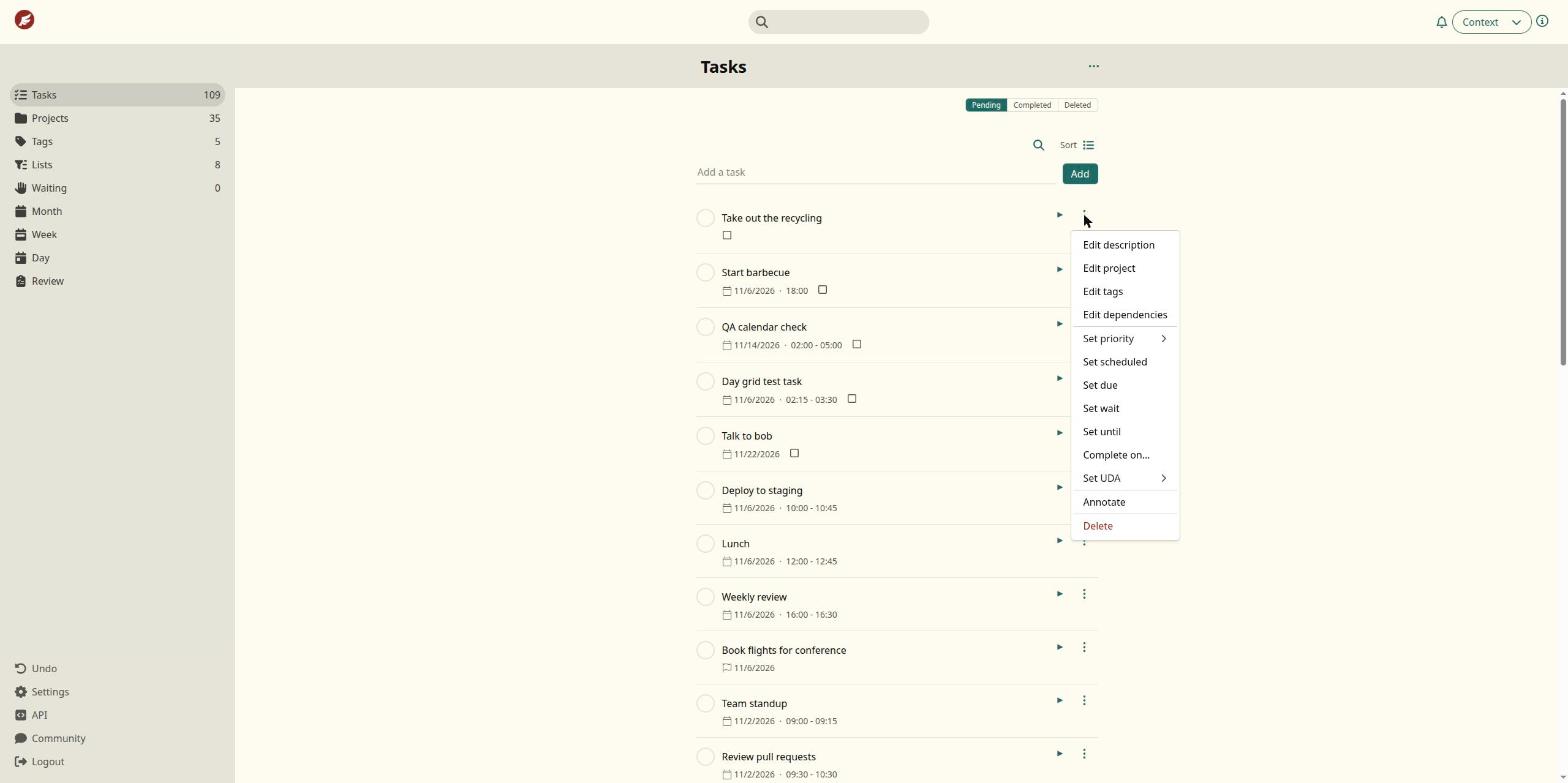
- Open the menu (the three dots) on a pending task.
- Select Complete on….
-
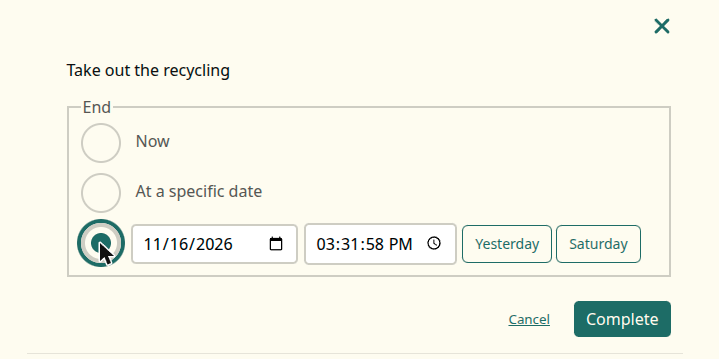
Choose when the task was completed: * Now * At a specific date * At a specific date and time
The date and time option also offers Yesterday and the most recent weekday as shortcuts.
-
Select Complete.
The task moves to the Completed tab with the date you chose.
Log a Task You Already Finished
The Completed tab has a Log a completed task field. Type what you did and select Log. By default the task is logged as completed Now.
To log it at another time, pick an option in the Completed: row under the field:
- Now
- Yesterday
- The day before yesterday (shown by its weekday name)
- Choose date…
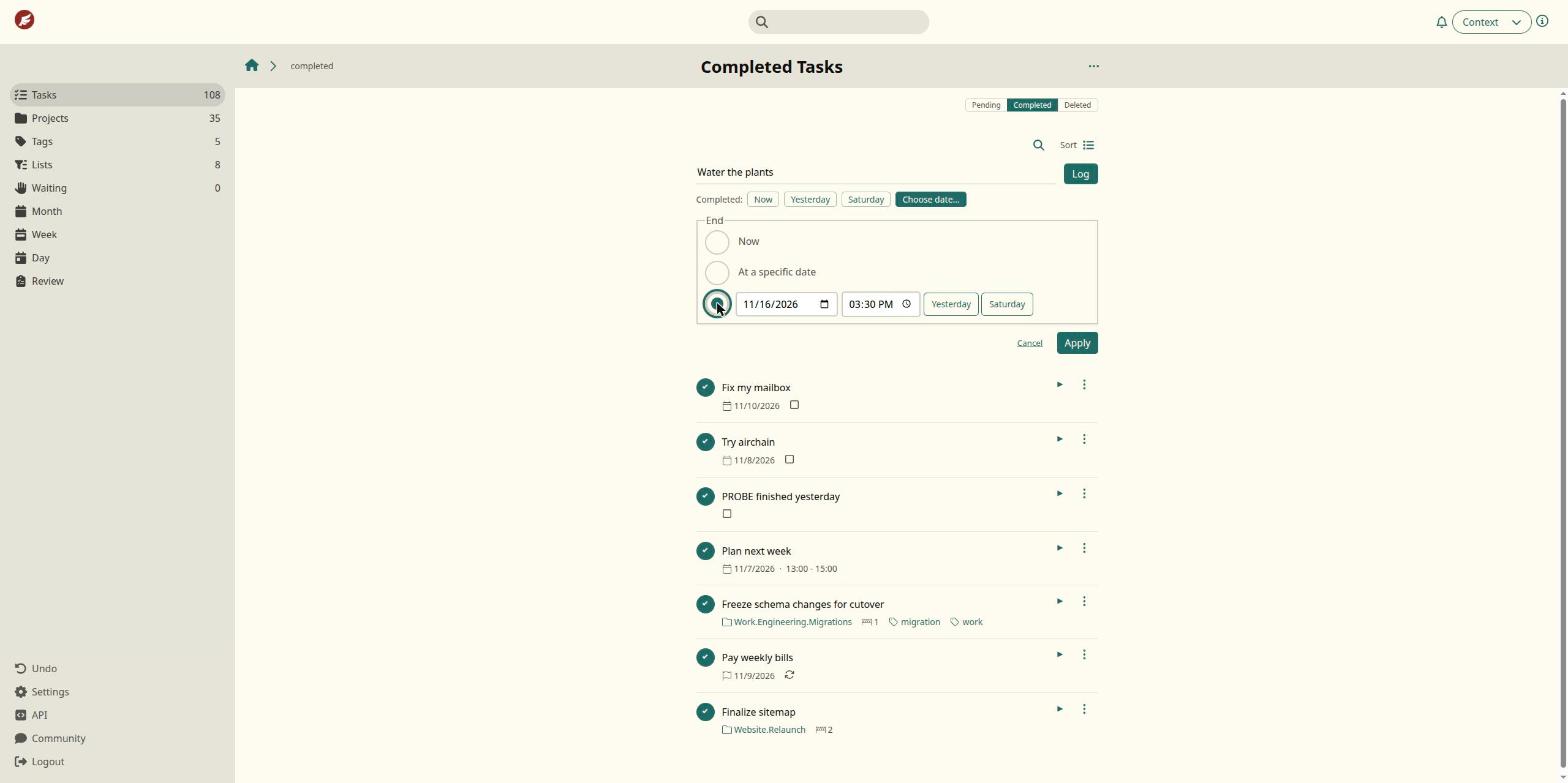
Choose date… opens the same date and time options. Select Apply to use your choice, or Cancel to keep the previous one.
The chosen date appears on the selected button, for example Nov 15, 15:30.
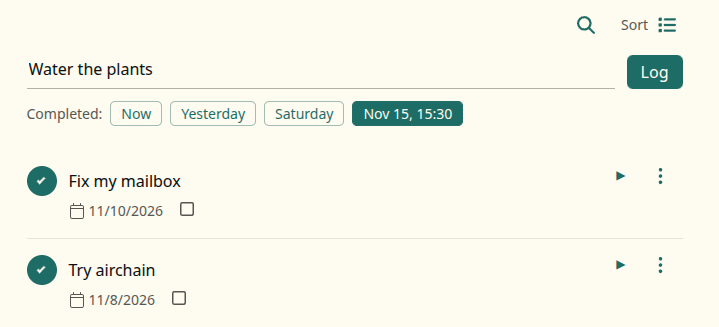
The choice stays selected after you select Log. You can log several tasks from the same day without choosing the date each time. Reloading the page returns the choice to Now.
If you type an end date in the task description itself, that date is used instead of the one chosen here.
Change the Completion Date of a Completed Task
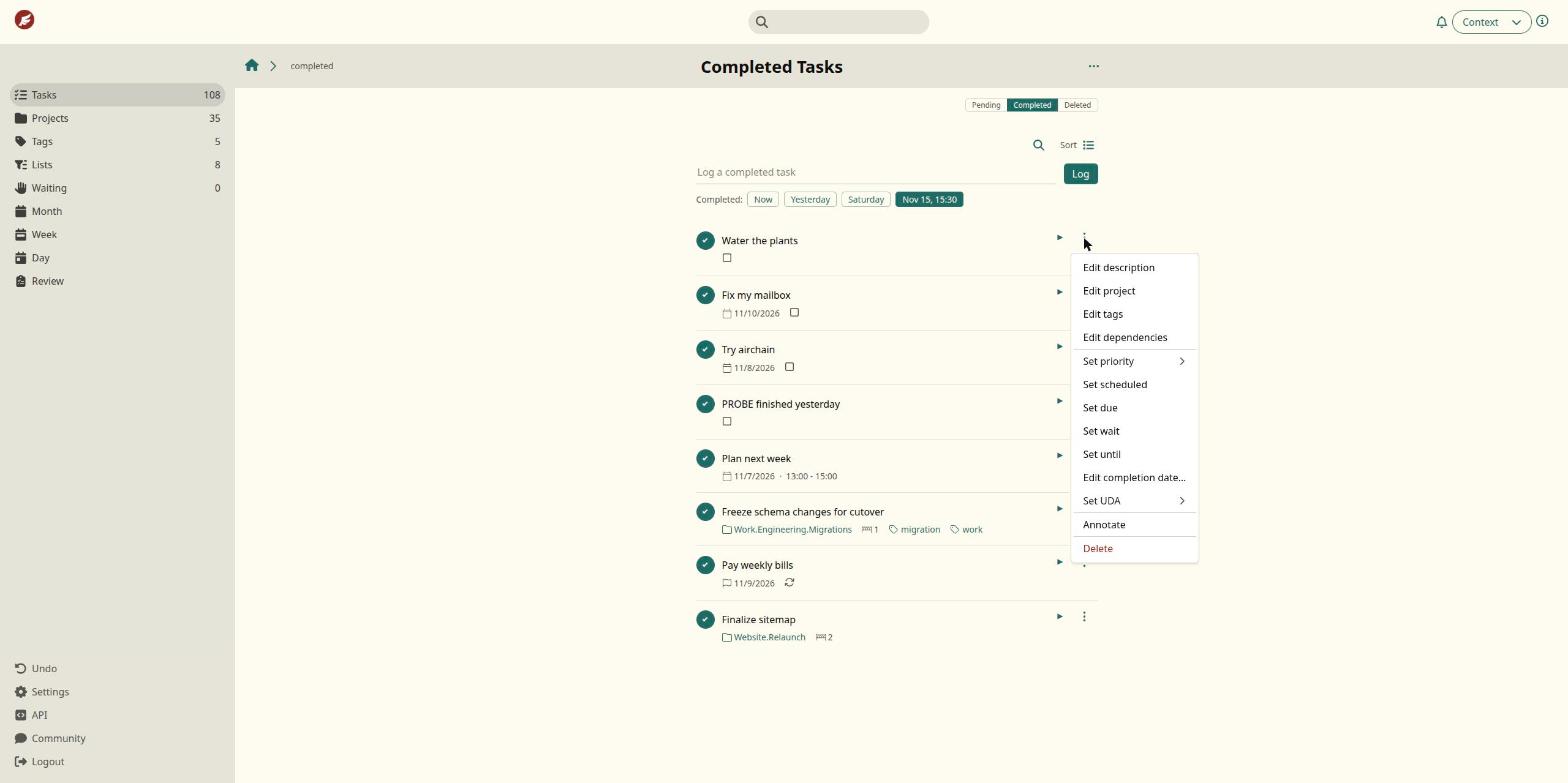
- Open the menu on a task in the Completed tab.
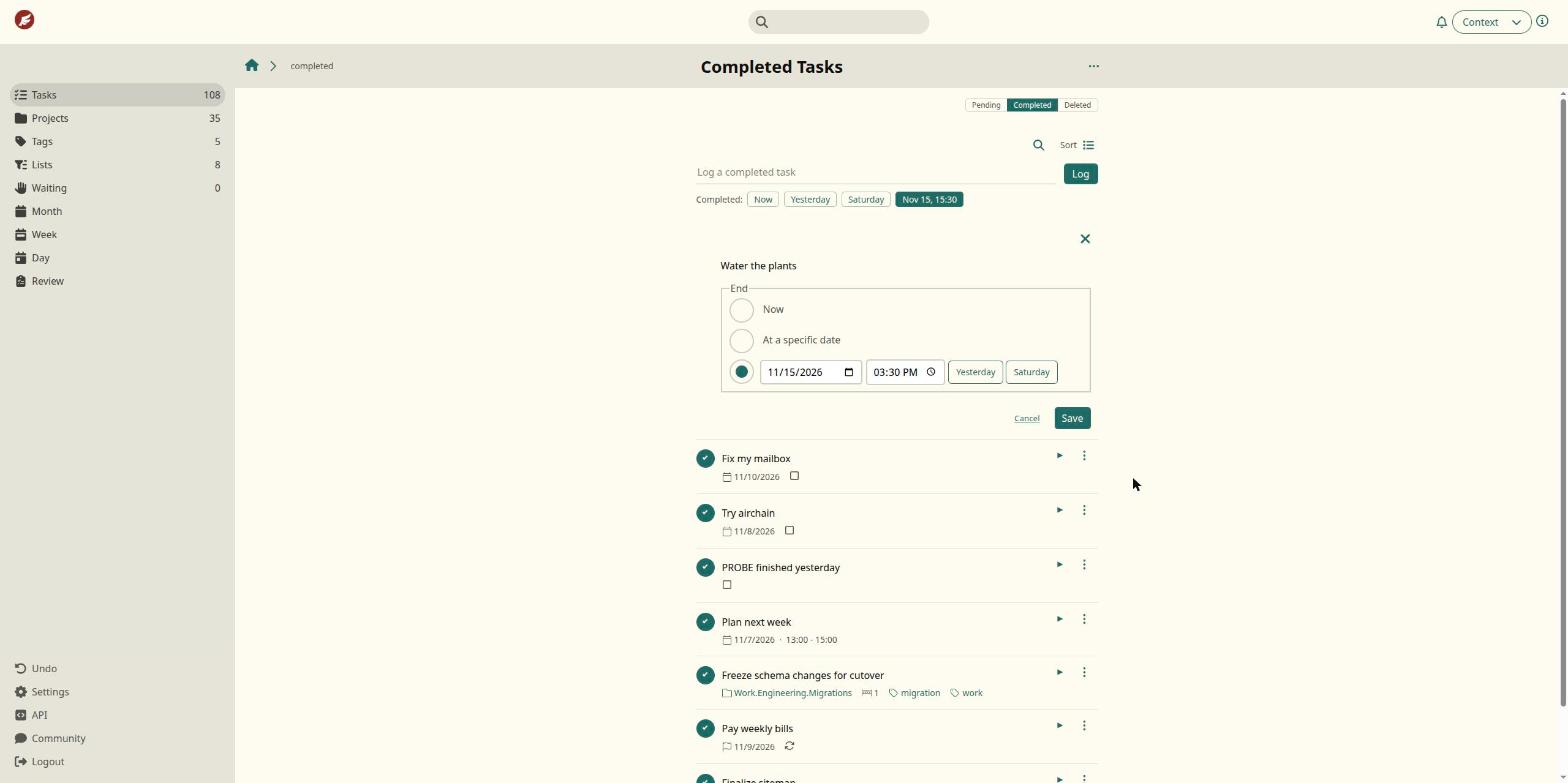
- Select Edit completion date….
- Choose a new date or time and select Save.
Notes
- Now uses the server’s clock when you submit, not your device’s clock. A device with the wrong time does not affect the result.
- If WingTask cannot save the date, an error appears above the date field and the task keeps its previous date.