Extending Tasks with User Defined Attributes
Overview
User Defined Attributes (UDAs) are custom fields you add to your
tasks. If the built-in fields — project, tags, due date, priority —
do not cover everything you want to track, UDAs let you define your
own.
How It Works
What a UDA is
A UDA is a named field with a type. Once defined, it behaves like any
other task field. You can set it when creating or editing a task,
filter tasks by it, and sort by it.
Examples of UDAs you might create:
energy— Low, Medium, or Highclient— a client nameestimate— a number of hoursreview_date— a date to revisit the task
Supported types
| Type | Description |
|---|---|
string |
Any text value, optionally limited to a set of allowed values |
numeric |
A number |
date |
A date |
duration and uuid types are not currently supported in WingTask.
Support for these may be added in a future release.
Allowed values
For string UDAs, you can optionally specify a list of allowed
values. When set, WingTask restricts the field to those values and
presents them as a dropdown.
Example: an energy UDA with allowed values Low,Medium,High.
Default value
You can optionally set a default value. When a new task is created,
the UDA is pre-filled with that value.
UDA icons in the task list
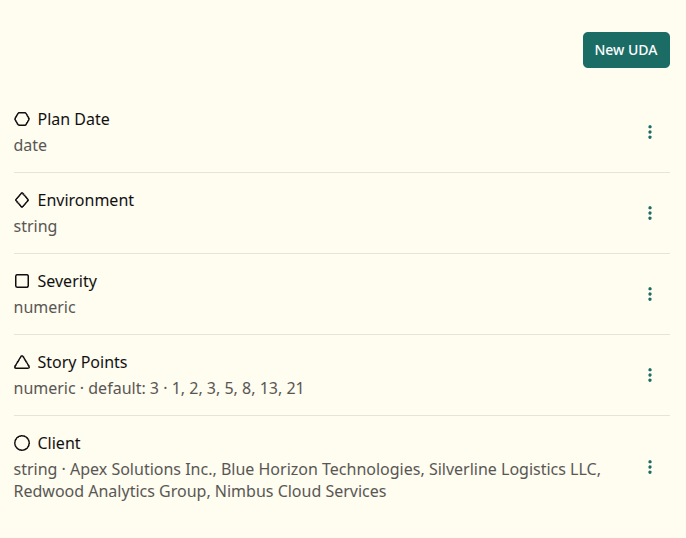
Each UDA is automatically assigned a unique icon when it is created.
WingTask draws from a set of geometric shapes — circle, triangle,
square, rhombus, hexagon, and others — assigning one to each UDA in
order.
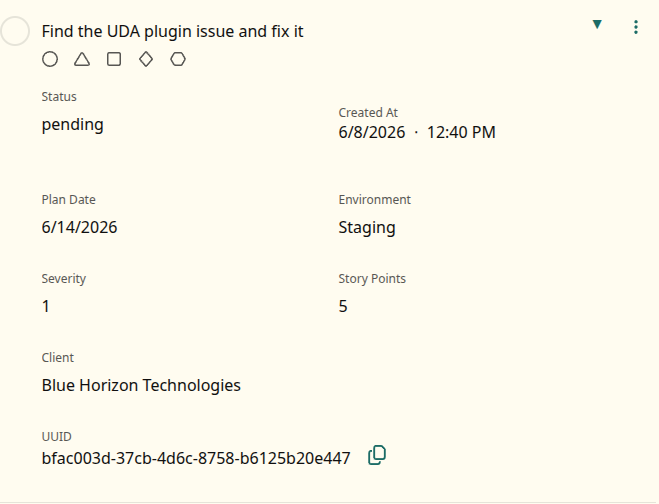
In the task list, each task shows a secondary row of small icons
representing its attributes. When a task has a value set for a UDA,
that UDA’s icon appears in this row alongside icons for other
attributes such as project, tags, due date, and priority. Hovering
over an icon shows a tooltip with the UDA’s label and current value.
This makes it easy to see at a glance which tasks have a given UDA
set without opening each task.
Managing UDAs
UDAs are managed in Settings → UDAs.
Creating a UDA
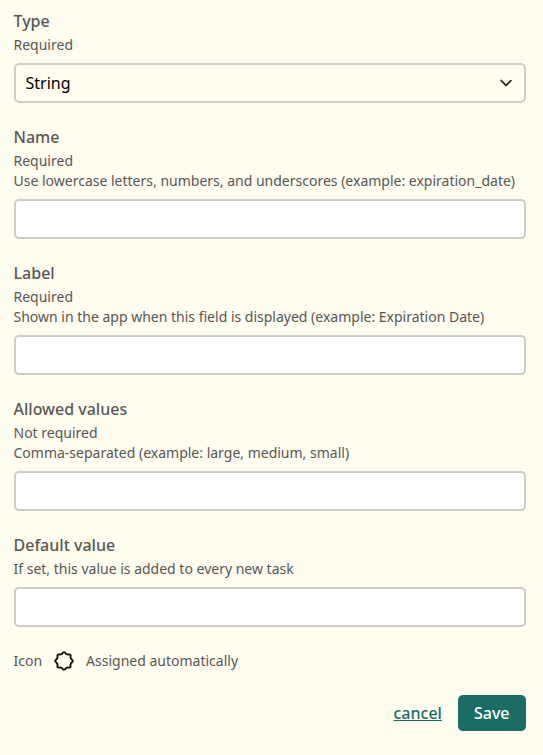
- Go to Settings → UDAs.
- Click New UDA.
- Enter a name, type, label, and optional allowed values or default.
- Save.
The name must be lowercase, start with a letter, and contain only
letters, numbers, and underscores. It cannot match a built-in
Taskwarrior field name.
Once created, the UDA is available on all your tasks.
Editing a UDA
You can update the label, allowed values, and default value of an
existing UDA. The name and type cannot be changed after creation.
Deleting a UDA
Deleting a UDA removes it from WingTask. Existing task data for that
field is not removed from your Taskwarrior data — the value is
preserved in the task but no longer displayed or editable in WingTask.
UDAs and Taskwarrior
WingTask passes your UDA definitions to Taskwarrior as rc.uda.*
configuration at sync time. This means your UDAs are recognized when
tasks sync.
If you also use Taskwarrior on the command line, you will need to add
the same UDA definitions to your Taskwarrior config (~/.taskrc) for
those fields to be recognized there. Without the config, Taskwarrior
will preserve the values in the task data but treat the fields as
unknown attributes.
Example ~/.taskrc entry for a string UDA:
uda.energy.type=string
uda.energy.label=Energy
uda.energy.values=Low,Medium,High
Examples
Example: Energy level
A UDA to track how much energy a task requires:
- Name:
energy - Type:
string - Allowed values:
Low,Medium,High - Default:
Medium
Tasks show an Energy field with a dropdown. You can filter your task
list to show only energy:Low tasks when you have limited capacity.
Example: Time estimate
A UDA to track estimated hours:
- Name:
estimate - Type:
numeric
Tasks show an Estimate field where you enter a number. You can sort
by estimate to see which tasks will take the most time.
Notes
- UDA names must be lowercase, start with a letter, and use only
letters, numbers, and underscores. - Names cannot match built-in Taskwarrior field names such as
due,project,status, orpriority. - The name cannot be changed after creation.
- Deleting a UDA in WingTask does not remove its data from your tasks.
durationanduuidtypes are not currently supported.- Each UDA is assigned a unique icon at creation time; it appears
in the task list secondary row when the task has a value for that
UDA. - If you use Taskwarrior on the command line, add matching
uda.*
entries to your~/.taskrcso those fields are recognized there.
Related Topics
- Filters
- Working with Lists
- Projects
- Tags