Focusing with Contexts
Overview
A context narrows your entire workspace to a specific set of tasks.
When a context is active, every view in WingTask — tasks, projects,
tags, and lists — only shows tasks that match it.
How It Works
What a context does
A context is a list you have marked as a context. When you activate
it, WingTask applies that list’s filter on top of every other view you
open. Only tasks that match both the view and the context are shown.
For example, if your context filters by +work, opening your Pending
Tasks view will only show pending tasks tagged work. Opening a
project view will only show tasks in that project that are also tagged
work.
Clearing the context returns all views to their normal behavior.
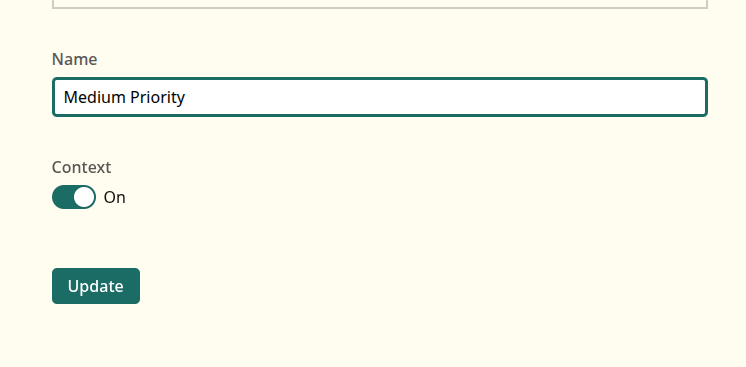
Marking a list as a context
To make a list available as a context:
- Create or edit a list.
- Enable the Context toggle.
- Save the list.
The list will then appear in the context picker.
Activating a context
The context picker is in the navigation bar. It shows Context when
none is active, or the name of the active context if one is set.
To activate a context:
- Click the context picker.
- Select a context from the list.

To clear the active context:
- Click the context picker.
- Select Context (the clear option).

Only one context can be active at a time.
Examples
Example: Focus on work tasks
You have a list called “Work” filtered by +work. You mark it as a
context and activate it.
Now every view only shows tasks tagged work. Your personal tasks are
hidden until you clear the context.
Example: Focus on a project
You have a list called “Project X” filtered by project:ProjectX. You
activate it as a context.
Opening your Pending Tasks view shows only pending tasks in Project X.
Opening any tag view shows only tasks in Project X with that tag.
Notes
- Only lists you have created can be marked as contexts.
- Only one context can be active at a time.
- Task counts in the sidebar reflect the active context.
- When you switch contexts while viewing a project, tag, or list
detail page, WingTask redirects you to the parent index to avoid
showing an empty or irrelevant view.
Related Topics
- Working with Lists
- Filters
- Projects
- Tags