How Undo and Sync Work Together
Overview
WingTask lets you undo the most recent change to a task. Changes are
held locally until you sync, which means you have a window to reverse
an action before it is committed to the server.
How It Works
Undo
Undo reverses the most recent mutation of a task. A mutation is any
change: creating a task, updating a field, marking a task done, or
deleting it.
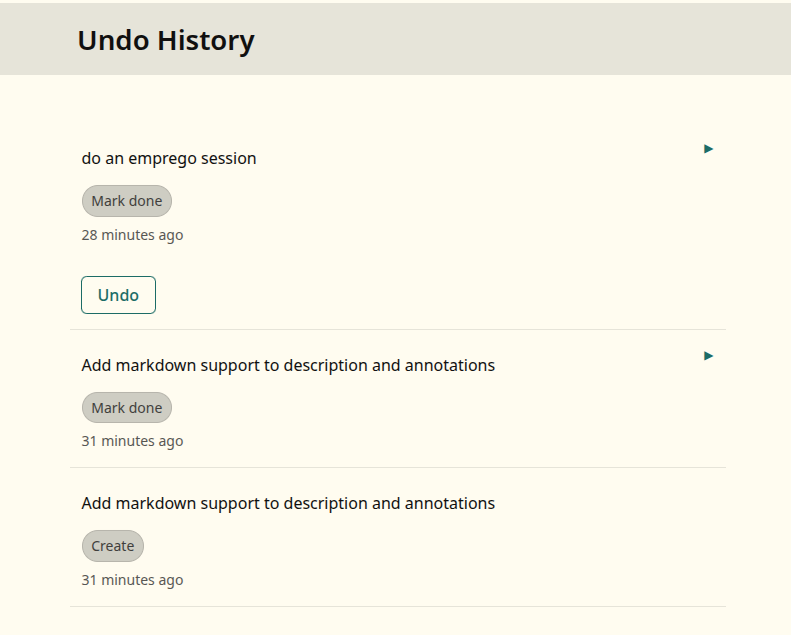
You can undo only the single most recent change. Earlier changes are
visible in the Undo history, but only the last one has an Undo button.
To undo:
- Click the Undo link that appears after making a change, or go to
the Undo page from the navigation. - The most recent change is shown at the top. Click Undo to
reverse it.
The Undo page also shows the full history of changes that have not
yet been synced. For updates, you can expand each entry to see which
fields changed and what the old and new values were.
Sync
WingTask keeps a private task database for each account. Changes you
make in WingTask are written to this database immediately, but they
are not pushed to the sync server until you click Sync.
The Sync button in the navigation shows a count of how many changes
are waiting to be synced. Clicking Sync pushes those changes to the
server and pulls in any changes from other clients.
Once changes are synced, they are committed. Undo is no longer
available for synced changes.
Why sync is manual
Keeping sync manual is what makes undo possible. If WingTask pushed
changes to the server immediately, there would be no way to reverse
them.
By holding changes locally, WingTask gives you time to catch a
mistake before it reaches your other devices. When you are confident
in your changes, click Sync to commit them.
WingTask and Taskwarrior
WingTask behaves as a TaskChampion client, the same as Taskwarrior.
Changes made in WingTask are not immediately visible to Taskwarrior,
and changes made in Taskwarrior are not immediately visible in
WingTask. Both clients sync through the TaskChampion sync server.
To get changes from WingTask into Taskwarrior:
- Click Sync in WingTask to push your changes to the server.
- Run
task syncin your terminal. Taskwarrior pulls the changes
down from the server.
To get changes from Taskwarrior into WingTask:
- Run
task syncin your terminal to push your changes to the
server. - Click Sync in WingTask to pull the changes down.
Neither client sees the other’s changes until both have synced
through the server.
Examples
Example: Undo a completed task
You mark a task done, then realize it was the wrong one.
- A toast notification appears with an Undo link. Click it.
- The task is restored to its previous state.
If you had already clicked Sync before noticing the mistake, undo is
no longer available. The change has been committed to the server.
Example: Undo then sync
You create a task, then decide you do not want it.
- The Sync button shows a count of 1 — one change waiting.
- Open the Undo page. The new task appears at the top.
- Click Undo. The task is removed. The sync count returns to 0.
- Click Sync when you are ready. Nothing is pushed because the
creation was reversed before it was committed.
Notes
- Only the most recent change can be undone.
- Syncing commits all pending changes. Undo is not available for
changes that have been synced. - The Undo history shows all unsynced changes, but only the most
recent one can be reversed. - If you use Taskwarrior on the command line, you must click Sync in
WingTask before runningtask syncto exchange changes between
the two clients.
Related Topics
- Recurring Tasks in WingTask
- Working with Lists
- Filters