Recurring Tasks in WingTask
Overview
Recurring tasks in WingTask are managed by Taskwarrior. WingTask
displays recurring task instances and lets you complete them, but does
not generate new ones. Taskwarrior handles all recurrence generation.
How Taskwarrior Recurrence Works
The template and instance model
When Taskwarrior creates a recurring task, it creates two things:
- A template — a hidden task that holds the recurrence rule,
the anchor due date, and a history of every instance generated - Instances — the visible, pending tasks that appear on your
list, one at a time as each period arrives
You interact with instances. The template stays in the background and
is never shown as a normal task.
How instances are generated
Taskwarrior generates new instances when you run a command that reads
your task list — for example, task list or task next. At that
point, Taskwarrior checks each recurring template and spawns the next
pending instance if one is due.
This is why recurring tasks need Taskwarrior running on at least one
client. Without a Taskwarrior client performing that check, no new
instances are generated and your recurring tasks stop appearing.
One primary client for generation
Taskwarrior’s recurrence generation is designed to run on a single
primary client. If multiple syncing clients all generate recurring
instances independently, duplicates can appear.
The recommended setup is:
- One client (typically your desktop or CLI) has recurrence generation
enabled - All other clients, including WingTask, act as subordinate clients
that display and complete instances but do not generate them
How WingTask Fits In
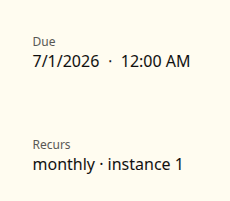
WingTask is a subordinate client. It displays recurring task instances
synced from Taskwarrior and lets you complete them. It does not run
the recurrence generation loop — it relies entirely on Taskwarrior to
produce instances.

This means:
- Recurring tasks appear in WingTask after Taskwarrior has generated
them and synced - Completing a recurring task in WingTask marks that instance done
and syncs the change back to Taskwarrior - The next instance appears once Taskwarrior generates it on your
primary client and syncs again - Creating or modifying recurrence rules must be done in Taskwarrior
Creating a Recurring Task
Recurring tasks are created in Taskwarrior with a due date and a
recur period:
task add "Pay rent" due:1st recur:monthly
Common recur periods:
| Period | Meaning |
|---|---|
daily |
Every day |
weekly |
Every 7 days |
biweekly |
Every 14 days |
monthly |
Every calendar month |
quarterly |
Every 3 months |
annual |
Every year |
2w |
Every 2 weeks |
3d |
Every 3 days |
Once Taskwarrior generates the first instance and syncs, it will
appear in WingTask.
Ending a recurring series
To stop a recurring task, modify it in Taskwarrior:
task <id> modify until:2026-12-31
After the until date passes, Taskwarrior stops generating new
instances.
To end the series immediately, delete the recurring template in
Taskwarrior:
task <id> delete
Examples
Example: Weekly review
In Taskwarrior:
task add "Weekly review" due:monday recur:weekly
After Taskwarrior runs and syncs, a pending task appears in WingTask
each Monday. Completing it in WingTask marks that instance done. The
next Monday’s instance appears after Taskwarrior generates it.
Example: Annual renewal
In Taskwarrior:
task add "Renew domain" due:2026-03-01 recur:annual
A reminder appears each year on March 1st, once Taskwarrior has
generated and synced the instance.
Notes
- WingTask does not generate recurring task instances. Taskwarrior
must run on at least one primary client for new instances to appear. - If recurring tasks stop appearing in WingTask, check that
Taskwarrior is running and syncing on your primary client. - Completing a recurring task in WingTask works normally — the
instance is marked done and the change syncs to Taskwarrior. - Recurrence rules can only be created or changed in Taskwarrior.
Related Topics
- Installing Taskwarrior
- Connecting WingTask Sync
- Working with Lists