Overview
Review is a guided pass through your open tasks, one at a time, so you can tidy them up. For each task you decide whether it still belongs on your list as it is, needs changing, is already finished, or should be removed.
Review works the same way as the review command in Taskwarrior’s task shell (tasksh), and the two can be used together.
Why Review
Keep tasks fresh
A task list only helps if you trust it. When old tasks pile up that no longer apply, have the wrong due date, or were finished weeks ago, the list stops reflecting reality. You start double-checking it, or keeping a second list in your head, and you lose the peace of mind of knowing WingTask is carrying your tasks for you.
Regular review keeps every task current, so the list stays something you can rely on.
See what remains, and what is getting old
Walking through your tasks one by one shows you everything still waiting on you. Tasks you have not reviewed in a long time come up first, so it is easy to spot the ones that have been quietly sitting untouched.
Make room to think ahead
Review is also a moment to step back. Looking at what you have done and what is still open is a natural time to think about what comes next, and to add new tasks while that context is in front of you.
How It Works
Starting a review
Open Review from the navigation.
WingTask gathers every pending or waiting task that either has never been reviewed or was last reviewed more than 6 days ago. That set of tasks is your review. Tasks that have never been reviewed come first, followed by the ones reviewed longest ago. Within each group, more urgent tasks come first.
If nothing is due, WingTask shows All caught up! instead.
Working through tasks
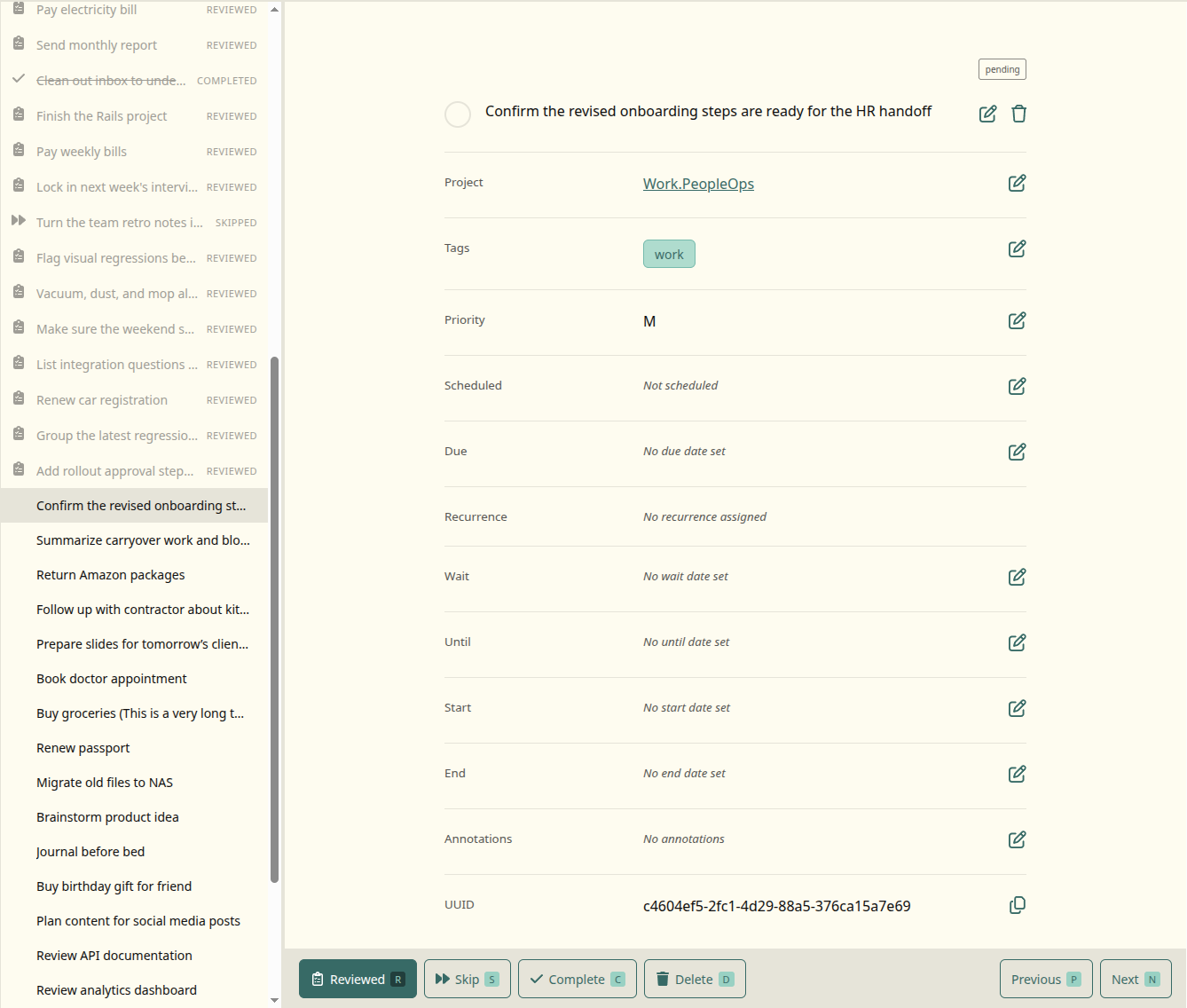
Each task is shown in full, one at a time. You can edit it in place before deciding what to do with it — change the due date, reword the description, add a tag, and so on.
Then choose one of these actions:
| Action | Key | What it does |
|---|---|---|
| Reviewed | R, Enter |
Keeps the task and marks it reviewed. |
| Skip | S |
Moves on without marking it reviewed. |
| Complete | C |
Marks the task done. |
| Delete | D |
Deletes the task. |
After each action, WingTask moves to the next task that still needs a decision. You can also move around freely:
- Next (
Nor→) and Previous (Por←) step through the review, including tasks you have already handled. - The sidebar lists every task in the review. Click any task to jump to it.
A counter shows how many tasks you have handled out of the total.
What “Reviewed” means
Marking a task Reviewed records the current date and time on the task in a field called reviewed. Nothing else about the task changes.
That date is what takes the task out of review for a while. A reviewed task will not come up again until 6 days have passed since it was reviewed. After that, it returns in your next review.
In other words, marking a task reviewed says “I have looked at this and it is still right,” and defers the question until next week.
Complete and Delete also record the review date, since you did look at the task.
Skip leaves the task untouched. A skipped task has not been reviewed, so it will come up again the next time you start a review.
Finishing a review
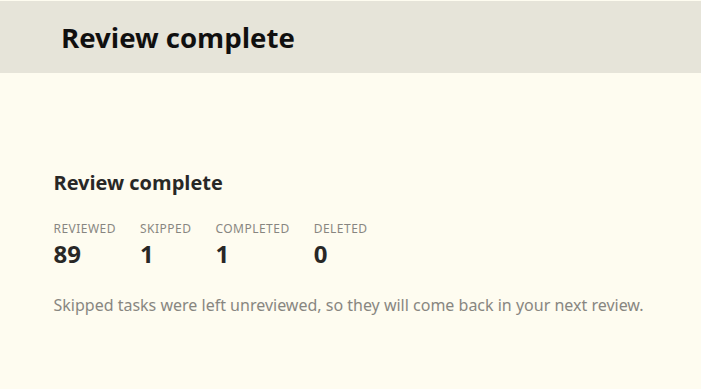
When every task has been handled, WingTask shows a summary of how many tasks you reviewed, skipped, completed, and deleted. From there you can go back to your tasks or start another review.
Leaving and coming back
You do not have to finish a review in one sitting. If you leave and open Review again later, you pick up where you left off.
When you return, WingTask catches the review up with anything that changed in the meantime. Tasks you completed or deleted elsewhere, or reviewed from another client, are counted as handled and will not be shown again.
The set of tasks in a review is fixed when the review starts. Tasks that become due for review after that wait for your next review.
To throw away the current review and start over with a fresh set of tasks, use Start another review from the summary page.
WingTask and Taskwarrior
WingTask’s review is built to match tasksh review. Both:
- Store the review date in the same
reviewedfield on the task. - Select tasks the same way: pending or waiting tasks that have never been reviewed, or were last reviewed more than 6 days ago.
Because the review date is stored on the task itself, it syncs like any other change. A task you mark reviewed in WingTask will not come up in tasksh review after you sync, and a task you review in tasksh will not come up in WingTask.
As with any change, click Sync in WingTask and run task sync in your terminal to move review dates between the two. See How Undo and Sync Work Together for details.
Defining the reviewed field in Taskwarrior
tasksh defines the reviewed field in your Taskwarrior configuration the first time you run tasksh review. If you have never used tasksh and want Taskwarrior to recognize the field, add it yourself:
task config uda.reviewed.type date
task config uda.reviewed.label Reviewed
Without this, Taskwarrior still keeps the value and syncs it, but treats it as an unknown attribute.
Examples
Example: A stale task
A task reads “Call the plumber about the kitchen sink.” The sink was fixed last month.
You press C. The task is marked done and WingTask moves to the next task.
Example: A task that needs a new date
A task reads “Submit expense report,” due last Friday. It still needs doing.
You change the due date to this Friday, then press R. The task is marked reviewed and will not come up in review again for 6 days.
Example: Not ready to decide
A task reads “Plan summer trip.” You are not sure yet whether it is still happening.
You press S. The task is left as it was and will be waiting for you in your next review.
Notes
- Only pending and waiting tasks are reviewed. Completed and deleted tasks never appear.
- The review interval is 6 days.
- Keyboard shortcuts are ignored while you are typing in a field or when a dialog is open.
- If a task is deleted from another device during a review, it is shown as no longer existing and counted as deleted.
Related Topics
- How Undo and Sync Work Together
- Task Syntax
- Connecting WingTask Sync