Working with Lists
Overview
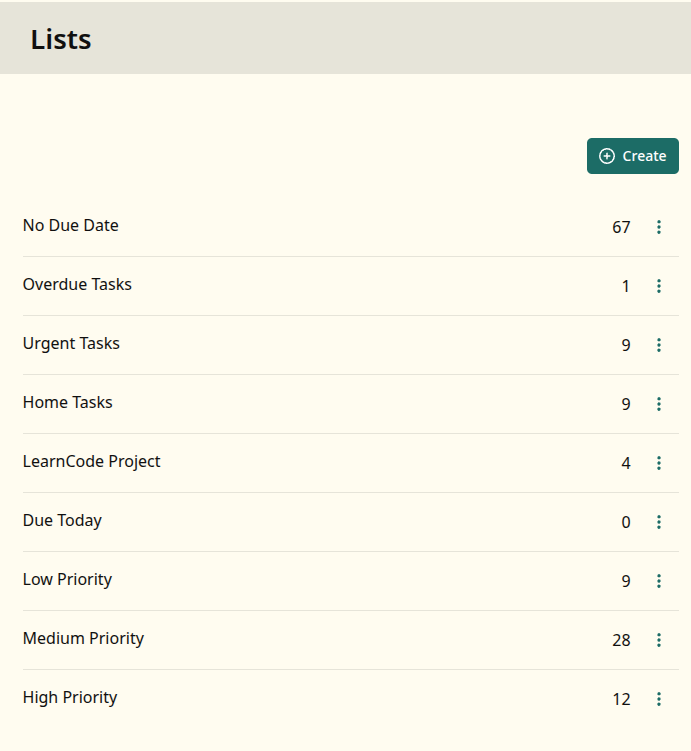
A list is a saved filter. When you open a list, WingTask runs the
filter and shows your current matching tasks. The tasks are not stored
in the list — the list is a reusable way to look at them.
How It Works
What a list does
A list stores a set of filter rules. Each time you open it, WingTask
applies those rules to your tasks and shows the results. If a task is
added, completed, or changed, the list reflects that the next time you
view it.
Filter rules
A list’s filter is built from one or more rules. Each rule matches
tasks on a field such as:
- Status (pending, completed, waiting, deleted)
- Project
- Tag
- Priority
- Due date, scheduled date, and other date fields
Rules can be combined with AND logic to narrow results, or OR logic to
broaden them.
Tabs within a list
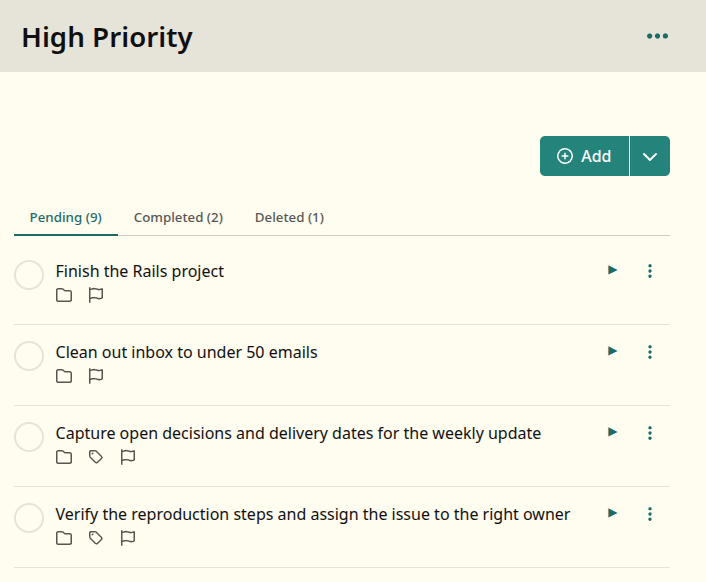
When viewing a list, WingTask shows tabs for Pending, Completed, and
Deleted. The tab applies a status filter on top of the list’s existing
rules. This lets you see all matching tasks regardless of status
without creating separate lists.
Read Only
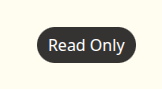
Some lists show a Read Only badge instead of an Add button. This
appears when the list’s filter cannot be used to pre-fill a new task.
For example, a list filtered by project:Work +home is not read only.
WingTask can pre-set the project and tag on a new task so it will
naturally appear in that list.
A list filtered using OR logic, or using rules that cannot be applied
at task creation time, is read only. You can still view and work with
tasks in those lists — you just need to add new tasks from a different
list or from the main task view.
Contexts
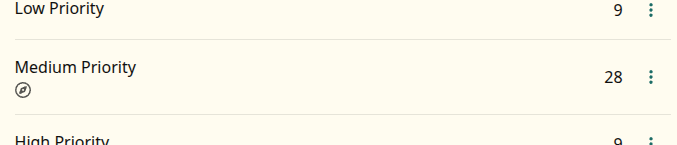
A list can be marked as a context. When a list is set as your active
context, it acts as an additional filter applied across all your views.
This narrows your workspace to only the tasks matching that context.
For example, if your context is a list filtered by +work, every view
you open will only show tasks tagged work until you change or clear
the context.
Examples
Example: High priority work list
Filter rules:
tag: work
priority: H
This list shows all tasks tagged work with priority H (high). When you add a task
from this list, it is pre-tagged with work and priority H (high).
Example: Read only list
Filter rules:
description contains "meeting"
OR tag: work
This list uses OR logic and a description search. WingTask cannot
reliably pre-fill a new task to match these rules, so the list is read
only. Tasks that match will appear here, but you add new tasks
elsewhere.
Notes
- A list does not store tasks. It stores filter rules. Tasks are always
stored in your Taskwarrior data. - The Read Only badge means the list’s filter is too complex to
pre-fill a new task. You can still view, complete, and edit tasks
from a read only list.
Related Topics
- Filters
- Projects
- Tags
- Contexts